Changelog

New updates and product improvements at InstaCloud.

Compute shells now come with curl, git, gh and jq

  • Compute
  • Access

A shell into a compute service runs inside your image's own filesystem. On a slim, alpine, distroless or FROM scratch image that used to mean no curl, git or gh: an agent could get in and then do nothing.

Sessions now find curl 8.15.0, git 2.50.1, gh 2.101.0 and jq 1.8.2 on their PATH, mounted read-only at /.insta/tools. That covers ssh <service>.insta, the dashboard Console tab and insta compute exec, so an agent can clone a repository or open a pull request from inside the service without rebuilding the image.

The toolbox is last on PATH, so a tool your image ships always wins. It is on the session's PATH only: your app's process sees the same environment as before, and anything it needs at runtime still belongs in the image. curl and git carry their own CA bundle, so https works in an image without certificates. gh uses the GH_TOKEN in your service's variables; InstaCloud injects none.
Scoped API tokens for scripts and CI

  • Access
  • Security

You can now mint an API token and drive InstaCloud from a script or a CI job: create a project, add services, deploy, run SQL. The dashboard, the CLI and the MCP server all use the same REST API at api.instacloud.com, so anything they can do, a token can do too.

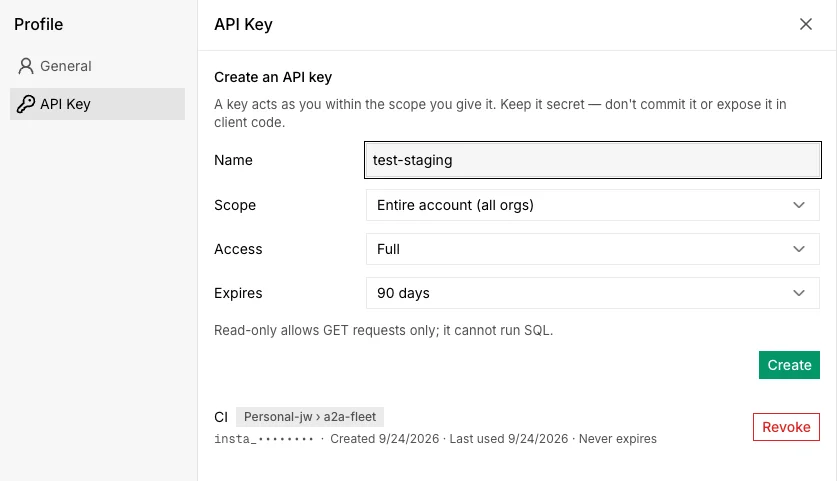
The API Key page under Profile, with Name, Scope, Access and Expires fields for a new key, and below them an existing key named CI scoped to one project with its creation date, last use and a Revoke button

Scope, access and expiry

A token is bound to your account, to one organization and its projects, or to one project, and the scope is fixed when you create it. Access is full or read-only: a read-only token can list and inspect but not run SQL or change anything. Expiry defaults to 90 days, or never for a token you rotate yourself.

A token never exceeds its owner. Your organization role still applies, and leaving an organization revokes the tokens you minted there.

Create one

In the dashboard, open API Key under Profile. From a terminal, the same token is one command:

insta tokens create ci --project <id> --read-only --expires 30d

The plaintext is shown once. Both places list your keys and revoke them, and a revoked key stops working immediately. On a CI runner, insta login --api-key signs the CLI in with the token instead of a browser.

Call the API

Send the token as a bearer credential. This adds a Postgres service to a project:

curl -s -X POST https://api.instacloud.com/projects/$PROJECT/services \
  -H "Authorization: Bearer $INSTA_TOKEN" -H "Content-Type: application/json" \
  -d '{"type":"postgres","name":"db"}'

A request outside the token's scope answers 403 token_scope. The API reference says which scopes each endpoint accepts.

Open a terminal in your compute from the browser

  • Compute
  • Access

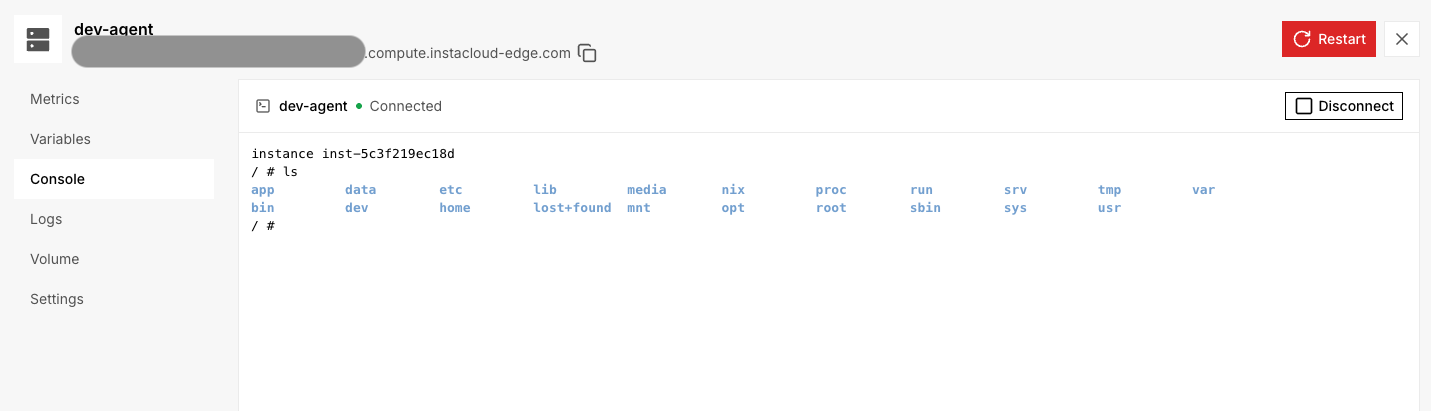
Every compute service now has a Console tab in the InstaCloud dashboard. Open it and you get a shell inside the service's VM, over the same SSH gateway the CLI uses, with nothing to install on your machine. It sits between Variables and Logs on the service page.

The Console tab on a compute service, connected to instance inst-5c3f219ec18d and listing the root filesystem

How a session works

The tab connects as soon as you open it. Being signed in to the dashboard is all it takes: no key to generate, no CLI to install. Ctrl+C, paste and resizing the window all work.

What you run in Console runs directly on the instance. Leaving the tab, switching services or waiting past 30 minutes closes the session, and Reconnect opens a fresh shell. On a service with several replicas the gateway picks one for you. An idle service wakes when you connect, and a stopped one asks you to start it first.

Console is for people. An agent that needs to run commands still uses insta compute exec.

From your own terminal

The SSH access that shipped on September 18 is unchanged. Use Console for a quick look; use ssh <service>.insta when you want scp, port forwarding or your own tooling:

insta compute ssh dev-agent --setup
ssh dev-agent.insta

SSH into your compute

  • Compute
  • Access

InstaCloud now supports SSH access to your compute services. Open an interactive shell inside the service's own VM to inspect files, debug a running app, or run commands with its environment available.

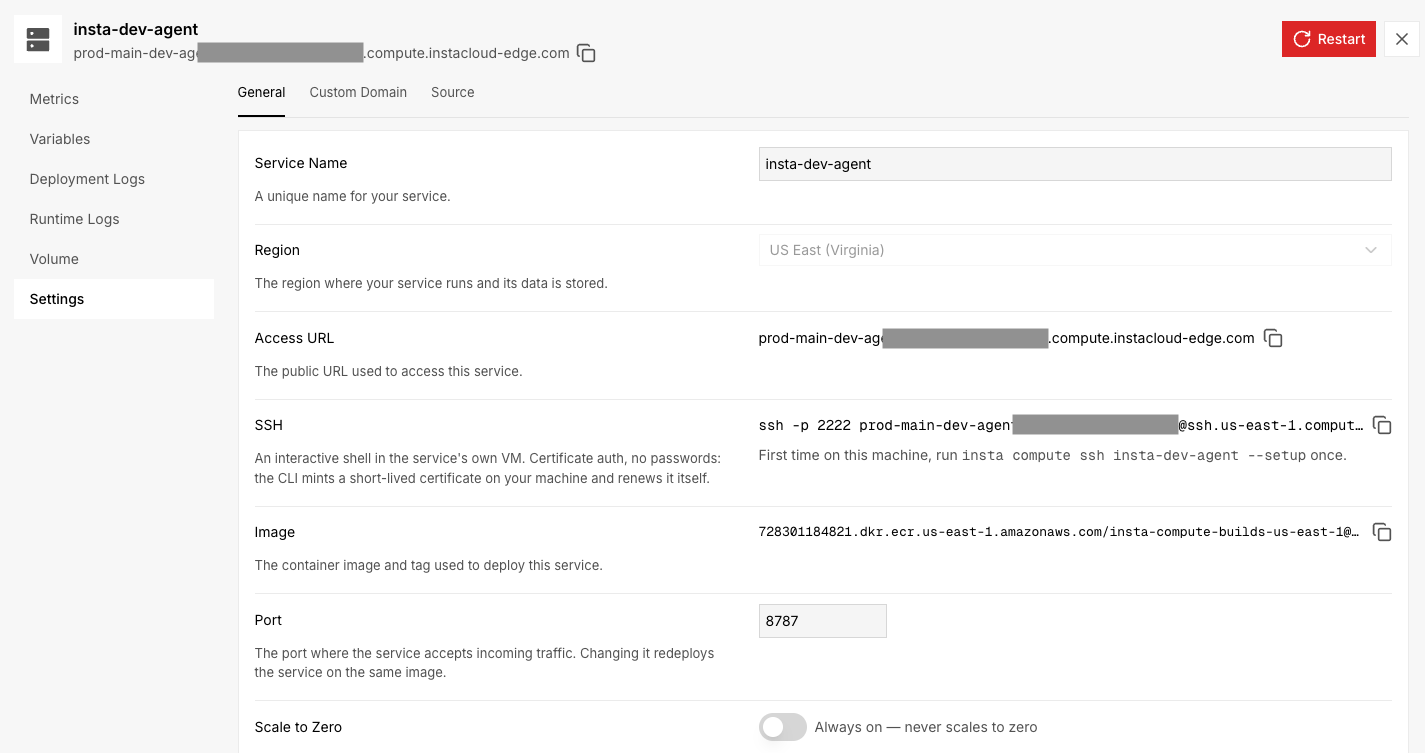
Compute service settings showing the SSH connection command and first-time setup instructions

Connect from your terminal

With CLI 0.0.79 or newer, run the one-time setup for your service on your machine, then connect with SSH. For the insta-dev-agent service shown above:

insta compute ssh insta-dev-agent --setup
ssh insta-dev-agent.insta

The CLI creates a dedicated local key, obtains a short-lived certificate, and configures a <service>.insta SSH alias. Certificates renew automatically when you connect. Authentication uses certificates, with no SSH password to manage. The alias also works with scp and local port forwarding (ssh -L).

You can find the connection command in the service's Settings → General → SSH section. To get a connection command without configuring an alias, run insta compute ssh <service>. This issues a certificate and prints the command; it does not open the session itself. For commands from CI, please use insta compute exec.