Changelog

New updates and product improvements at InstaCloud.

Compute shells now come with curl, git, gh and jq

  • Compute
  • Access

A shell into a compute service runs inside your image's own filesystem. On a slim, alpine, distroless or FROM scratch image that used to mean no curl, git or gh: an agent could get in and then do nothing.

Sessions now find curl 8.15.0, git 2.50.1, gh 2.101.0 and jq 1.8.2 on their PATH, mounted read-only at /.insta/tools. That covers ssh <service>.insta, the dashboard Console tab and insta compute exec, so an agent can clone a repository or open a pull request from inside the service without rebuilding the image.

The toolbox is last on PATH, so a tool your image ships always wins. It is on the session's PATH only: your app's process sees the same environment as before, and anything it needs at runtime still belongs in the image. curl and git carry their own CA bundle, so https works in an image without certificates. gh uses the GH_TOKEN in your service's variables; InstaCloud injects none.
Outbound traffic keeps a scale-to-zero service awake

  • Compute

A scale-to-zero compute service suspends when it goes idle and wakes on the next request. Until now, idle was judged from inbound traffic only: HTTP requests, SSH sessions and open TCP connections. A background worker or an agent on a long task can take nothing in for minutes, and the platform could suspend it mid-job.

Outbound traffic now counts as activity too. A process that is calling a model or polling a queue keeps its service awake for as long as it keeps talking. The service still suspends once it goes quiet in both directions, so an idle one costs what it did before.

Nothing to configure

Every scale-to-zero service picks this up on its own. If you switched a service to always-on only so a long task would survive, you can switch it back:

insta compute always-on off <service>

Outbound traffic keeps a running service awake; it does not wake a suspended one. A service whose work only ever starts from its own side, like a bot polling on a timer, still needs always-on.

Choose where your compute volume mounts

  • Compute

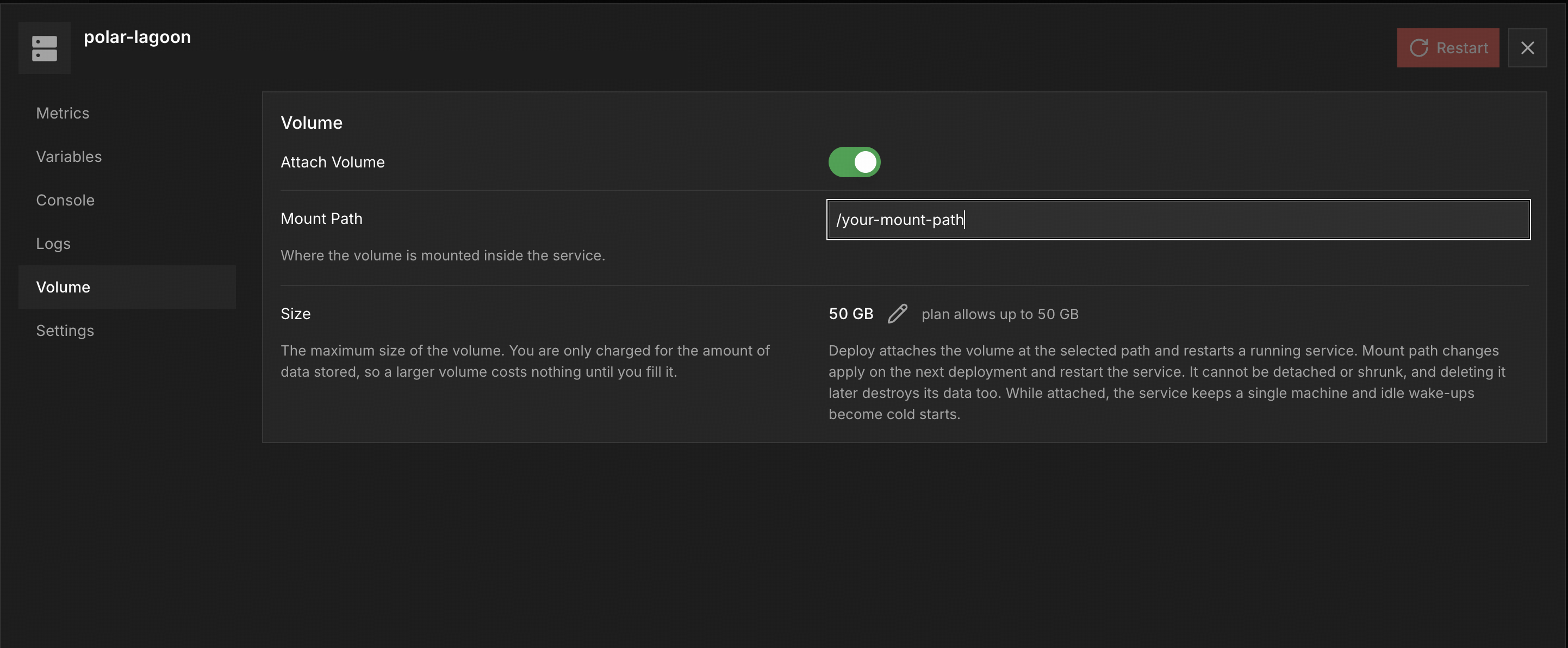
Compute volumes no longer have to live at /data. You can pick the mount path when you attach a volume, and change it later on a volume that is already attached. That makes it easy to run an image that expects its data somewhere specific, like a database under /var/lib/postgresql or an app that writes to /app/storage.

The Volume tab of a compute service, with a Mount Path field set to /your-mount-path above a 50 GB volume

Pick a path

In the dashboard, the Mount Path field sits in the service's Volume tab and in the create dialog. From the CLI, pass --mount-path when you create a service with a volume, or when you attach one to an existing service:

insta service add compute web --volume 1 --mount-path /app/storage
insta compute volume web --size 1 --mount-path /app/storage

Leave it out and the volume mounts at /data, as before. The path has to be absolute. System directories such as /etc, /usr or /proc are refused.

Move an existing volume

Changing the path of a volume that is already attached is staged, not applied on the spot. The dashboard shows it as pending until you deploy. From the CLI, stage it, then restart:

insta compute volume web --mount-path /srv/data
insta compute restart web

compute restart needs the service to already be running. If you've stopped or suspended it, start it first with insta compute start, or make the change from the dashboard's Deploy flow instead.

The service stops, the same disk is mounted at the new path, and the service starts again. Your files stay on the volume, and nothing is copied or resized. Your app's own configuration is not rewritten, so update any paths that point at the old location in the same deploy. In the dashboard, variables, the mount path and the startup command can all go out in one Deploy.

You need CLI 0.1.3 or newer to change the path of an existing volume. Managed database volumes keep the paths the platform chose.

Open a terminal in your compute from the browser

  • Compute
  • Access

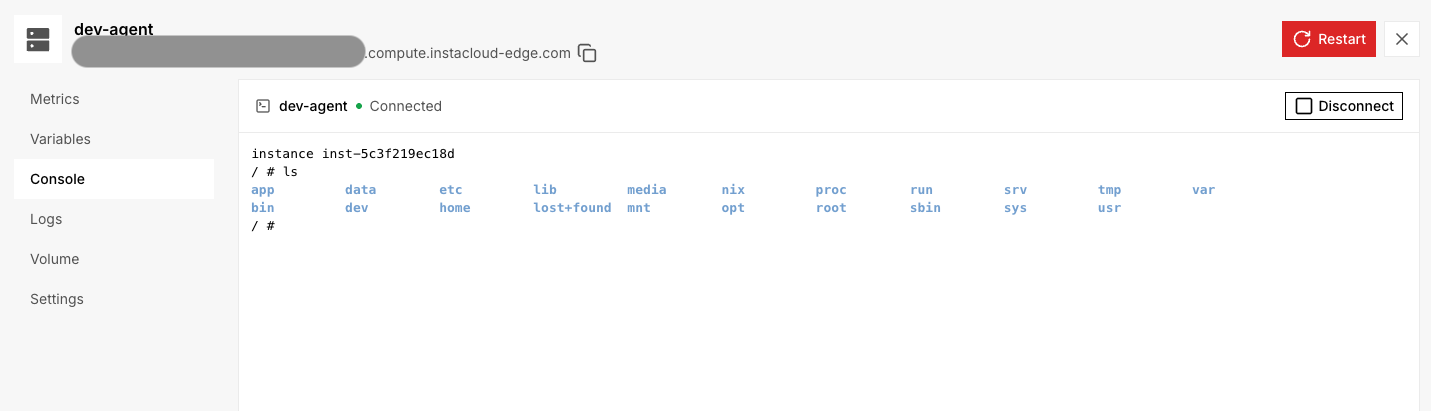
Every compute service now has a Console tab in the InstaCloud dashboard. Open it and you get a shell inside the service's VM, over the same SSH gateway the CLI uses, with nothing to install on your machine. It sits between Variables and Logs on the service page.

The Console tab on a compute service, connected to instance inst-5c3f219ec18d and listing the root filesystem

How a session works

The tab connects as soon as you open it. Being signed in to the dashboard is all it takes: no key to generate, no CLI to install. Ctrl+C, paste and resizing the window all work.

What you run in Console runs directly on the instance. Leaving the tab, switching services or waiting past 30 minutes closes the session, and Reconnect opens a fresh shell. On a service with several replicas the gateway picks one for you. An idle service wakes when you connect, and a stopped one asks you to start it first.

Console is for people. An agent that needs to run commands still uses insta compute exec.

From your own terminal

The SSH access that shipped on September 18 is unchanged. Use Console for a quick look; use ssh <service>.insta when you want scp, port forwarding or your own tooling:

insta compute ssh dev-agent --setup
ssh dev-agent.insta

SSH into your compute

  • Compute
  • Access

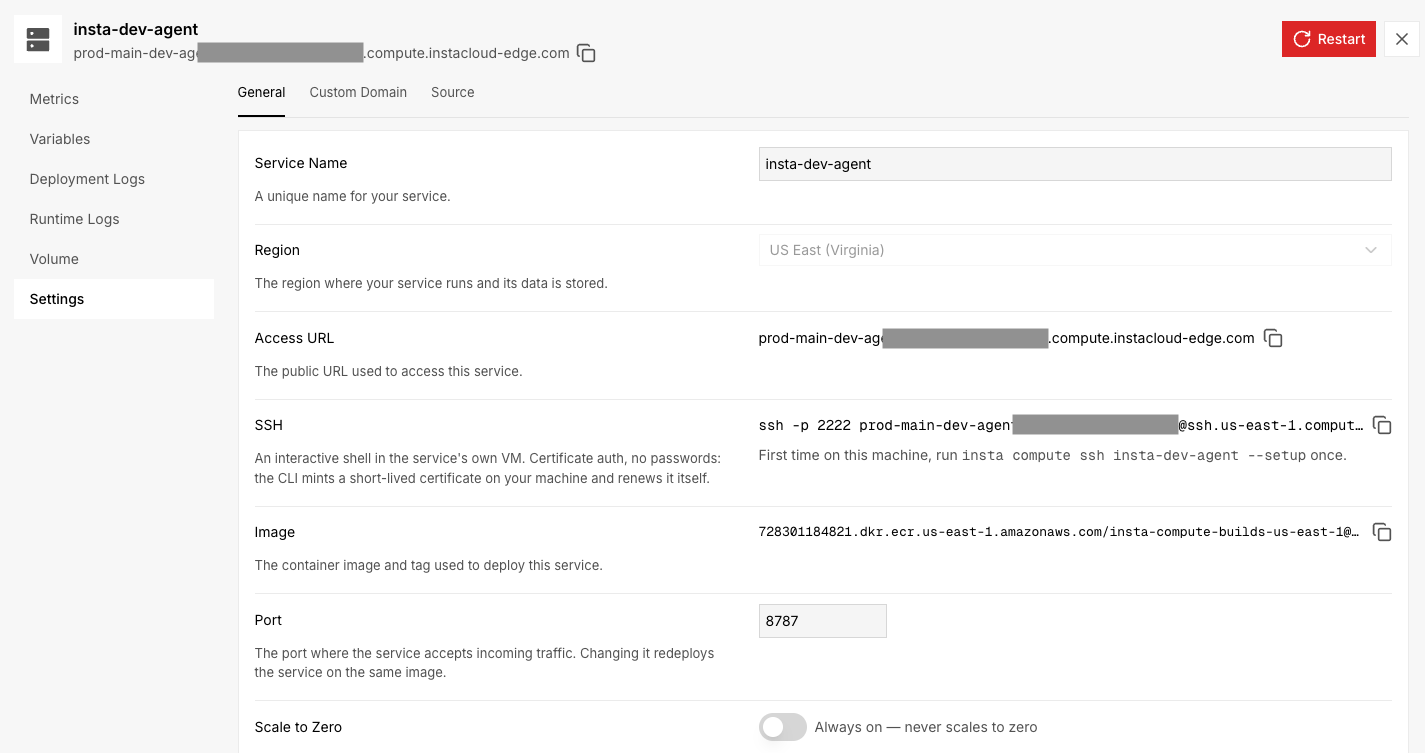
InstaCloud now supports SSH access to your compute services. Open an interactive shell inside the service's own VM to inspect files, debug a running app, or run commands with its environment available.

Compute service settings showing the SSH connection command and first-time setup instructions

Connect from your terminal

With CLI 0.0.79 or newer, run the one-time setup for your service on your machine, then connect with SSH. For the insta-dev-agent service shown above:

insta compute ssh insta-dev-agent --setup
ssh insta-dev-agent.insta

The CLI creates a dedicated local key, obtains a short-lived certificate, and configures a <service>.insta SSH alias. Certificates renew automatically when you connect. Authentication uses certificates, with no SSH password to manage. The alias also works with scp and local port forwarding (ssh -L).

You can find the connection command in the service's Settings → General → SSH section. To get a connection command without configuring an alias, run insta compute ssh <service>. This issues a certificate and prints the command; it does not open the session itself. For commands from CI, please use insta compute exec.

Run Docker inside your compute

  • Compute

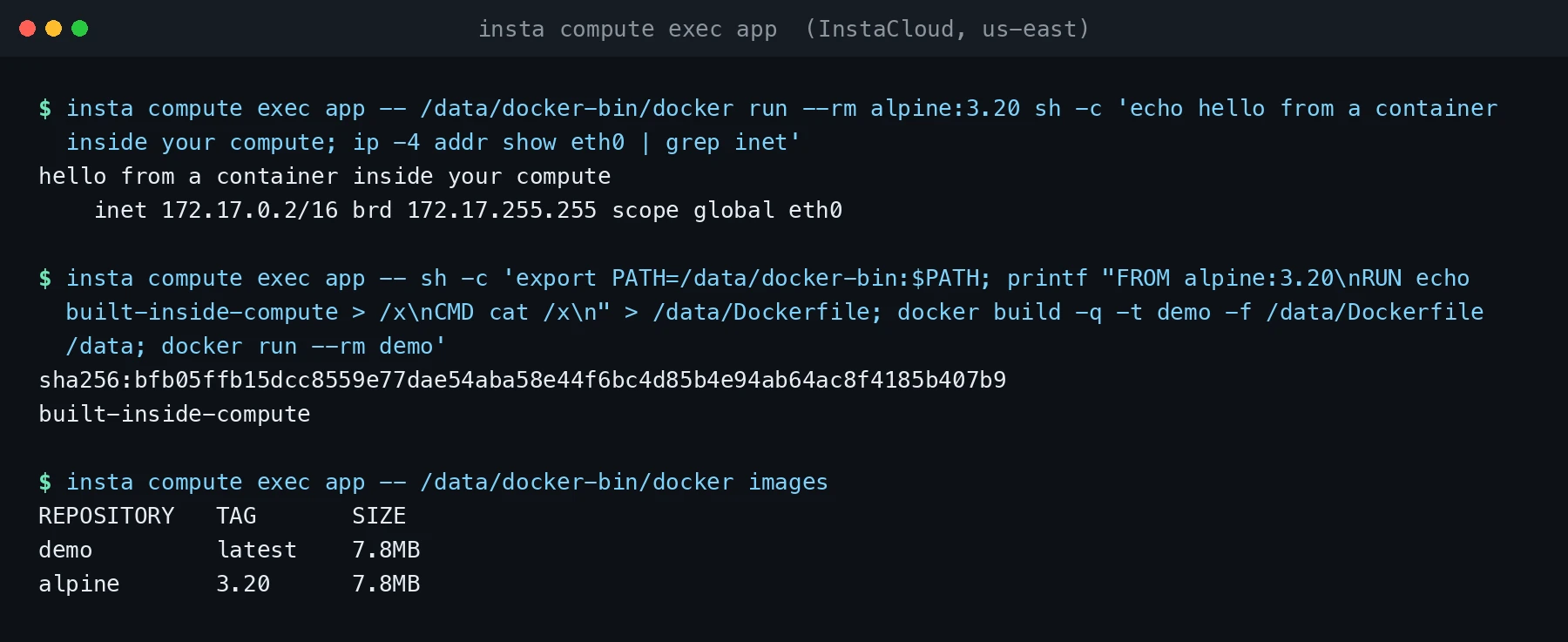
Compute services now run as full Linux VMs with cgroups and root, so your agent can install Docker inside its own compute and use it the way it would on a laptop: build images, run containers, wire them together. Nothing is preinstalled and nothing to enable.

Docker running inside an InstaCloud compute service

Give the service a volume, put Docker on it, and start the daemon. This is a stock Debian image:

insta services add compute app --image nginx:bookworm --port 80 --volume 2
insta compute exec app -- sh -c 'apt-get install -y curl iptables && curl -fsSL https://download.docker.com/linux/static/stable/x86_64/docker-27.5.1.tgz | tar -xz -C /data'
insta compute exec app -- sh -c 'setsid nohup /data/docker/dockerd --data-root=/data/docker-root >/data/dockerd.log 2>&1 </dev/null &'
insta compute exec app -- /data/docker/docker run --rm alpine echo hello from inside your compute

Keep Docker and its data on the volume. The root disk is sized to your image and rebuilt on every wake, so anything under /data survives sleep and wake, and anything else doesn't. Idle is still measured by traffic: a Docker stack sleeps with the service and comes back on the next request, so turn on always-on if it has to run with nobody calling it.

Run multiple compute replicas

  • Compute

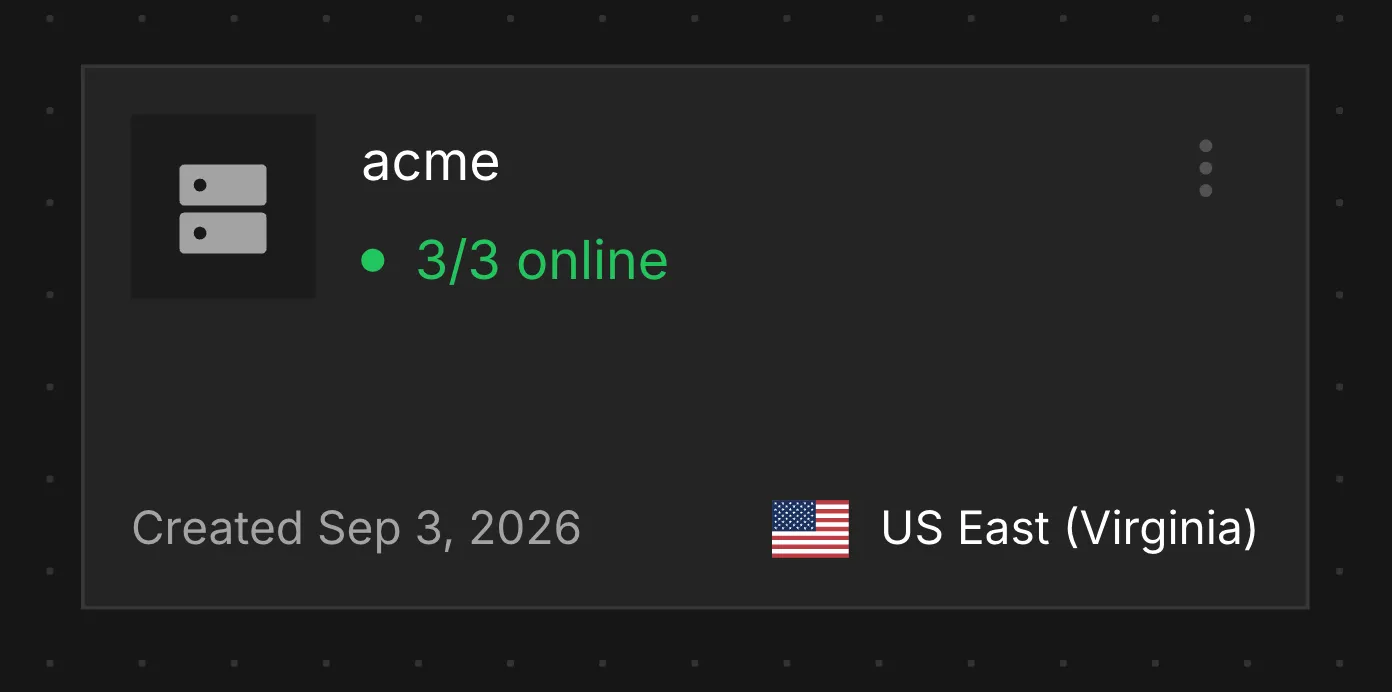
Compute services without a persistent volume can now run multiple replicas in the same region. Each replica runs the same deployed image and configuration, and traffic is balanced across them to improve availability.

Three compute replicas online

Configure replicas

From the dashboard, you can configure the number of replicas in each service's Settings tab, or ask an agent to make the change through the Insta CLI or MCP. For example, this command scales my-api-service to three replicas:

insta services scale compute my-api-service 3

With MCP, the equivalent call is insta_service_scale with count: 3.

This is a paid-plan feature with up to 10 replicas per service. You can contact us if you need more. Multi-region replicas are coming later.